Portable WiFi - Mobile Hotspot
- 4.4
- Rating
- 10.00M
- Installs
- Free
- Price

 Analysis by App-foxy
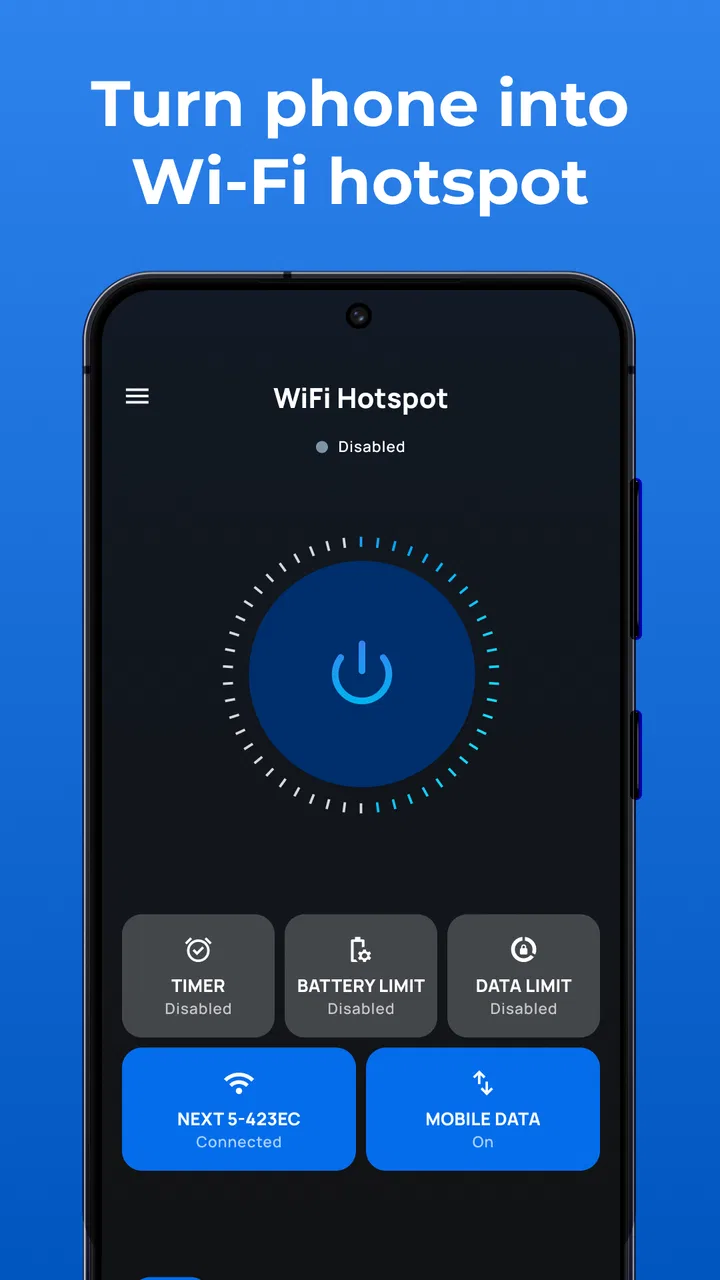
When I need to get a second device online without searching for a public network, I usually start with the phone already in my hand. Portable WiFi - Mobile Hotspot is built for that exact starting point: turning a compatible Android phone into a portable connection point for nearby devices. I found it most useful as a practical communication tool rather than something I would leave running all day.
The app comes from DOSA Apps and is free to install, with optional in-app purchases ranging from $0.99 to $99.99 per item. It belongs to the Communication category, is rated for Everyone, and works on Android 7.0 or later. Its current version is 3.9.2, and it has been available since January 30, 2021. Those details matter because this is an Android-focused solution: it is not a replacement for a separate router, and it does not magically create internet access where the phone itself has no usable mobile connection.
From a disconnected device to a working hotspot
I find the key to judging a phone hotspot is to separate the app’s job from the network’s job: it can help turn the phone into a connection point, but it cannot make a weak mobile signal faster. In the next section, I look at what that distinction means when a quick connection turns into a demanding session, and how to keep the phone from becoming the bottleneck.
You May Also Like

 Blood Strike: 2.5 Anniversary
Blood Strike’s Loadouts Turn Every Drop Into a Tactical Gamble
A close look at Blood Strike’s custom loadouts: how fast access to signature weapons reshapes its battle royale rhythm, rewards preparation, and narrows the gap between fights.

 Pandora - Music & Podcasts
Pandora’s Music Is Easy to Start, but Harder to Recover
Pandora’s strength is its low-effort path from a seed to a station. Its weak spot is how much confidence it asks you to place in connection, setup, and quiet recovery.

 8 Ball Pool
 Is Built on Rivalries, Rematches, and Routine
A close look at the rivalries, rematches, shared routines, and unanswered safety questions that turn a quick pool match into a persistent mobile community.

 Samsung Music
’s Quiet Strength Is Playing What You Already Own
Its reach comes less from spectacle than from dependable access to a personal library. That simplicity is both the app’s strongest retention engine and its ceiling.

 AccuWeather: Weather Radar
AccuWeather Review: A Quick, Clear Forecast for Everyday Decisions
For everyday plans, the best forecast is the one you can understand quickly. AccuWeather makes rain timing, radar, and local conditions easy to act on, with a few trade-offs.

 Hill Climb Racing
Why Hill Climb Racing Still Turns Crashes Into One More Run
A tiny car, a bumpy hill and one more upgrade: Hill Climb Racing keeps resurfacing because its simple chaos makes every near-miss feel personal.
More From Our News Desk



The starting condition: one phone has access, another device does not
The clearest use case is a familiar one. My phone has mobile data, but a tablet, laptop, e-reader, or another phone needs to connect. Instead of looking for a café network or entering a password into an unfamiliar public hotspot, I can use the phone as the bridge. The app’s purpose is simple, and that simplicity is a strength when I am trying to solve a connection problem quickly.
It is also useful during travel, temporary work, or household interruptions. A laptop can stay connected while I move from one room to another, or a second device can get online when there is no convenient wireless network nearby. The important distinction is that the phone remains the source of the connection. If mobile data is weak, unavailable, restricted, or expensive, the hotspot cannot improve those underlying conditions.
Before opening the app, I check the practical basics: mobile data is enabled, the phone has enough battery for the task, and the carrier plan allows tethering. This preparation prevents a common misunderstanding. A hotspot shares an existing connection; it does not replace the mobile network. Starting with that expectation makes the experience much less frustrating.
Step one: prepare the phone before sharing
My first step is to decide what the hotspot is for and how long it needs to remain active. A short document edit and a longer video call are very different situations. For a quick task, I can tolerate more battery use. For a work session, I keep the phone near a power source and avoid treating the hotspot as a permanent home router.
I also choose a sensible network name and password rather than leaving a random setup that I will forget later. This is a small but important workflow improvement. If I am handing the connection to someone else, a clear name reduces confusion, while a private password prevents nearby people from casually attempting to join. I prefer sharing the password directly instead of displaying it where other people can see it.
The app is free to download, which makes trying this workflow easy. However, the presence of optional purchases means I would still review any payment prompt carefully before confirming it. For a basic connection task, I would not assume that buying anything is necessary unless the app clearly explains what the purchase changes.
Step two: create the connection and join from the second device
Once the phone is ready, I use Portable WiFi - Mobile Hotspot to start the sharing process. On the device that needs internet access, I open the wireless network list, identify the phone’s hotspot, and enter the password. This handoff is where many real-world problems appear, so I take it slowly rather than tapping repeatedly when the second device does not connect immediately.
If the network does not appear, I check whether the hotspot is actually active and whether the receiving device has refreshed its wireless list. If it appears but refuses the password, I re-enter it carefully and avoid assuming that a similar-looking network belongs to my phone. If the device connects but pages do not load, I test the phone itself first. That separates a hotspot setup issue from a mobile-data issue.
This is one of the app’s practical advantages: it focuses on the moment when a phone needs to become a connection source. I do not need to turn the situation into a larger networking project. For a single nearby device, the process feels more direct than searching for public WiFi, accepting unfamiliar terms, and wondering whether the network is trustworthy.
Step three: manage the handoff between people and devices
A hotspot is often shared across a handoff: I may start it, give the password to a colleague, and then stop it when the task is finished. That makes the network name and password more important than they first seem. I use a temporary password when the connection is only for a short meeting or a one-time transfer, then change it later if I expect to reuse the phone as a hotspot in a different setting.
For family use, I would explain that the connection comes from the phone’s mobile plan. This avoids the assumption that every connected device has unlimited access. A tablet downloading a large update or a laptop synchronizing files can consume much more data than a quick message or webpage. Portable WiFi - Mobile Hotspot helps with the connection handoff, but it cannot decide whether every connected activity is sensible for the plan.
When I finish, I turn the hotspot off instead of leaving it available. That habit reduces accidental connections and avoids wasting battery. It is also helpful when moving between places, because a hotspot left active can make it harder to remember which network the phone is currently sharing.
What the result feels like in everyday use
The best outcome is not dramatic: the second device simply gets online and I can continue what I was doing. Imagine arriving at a station with a laptop and needing to send a document before boarding. My phone has a usable mobile connection, the laptop has no trusted WiFi nearby, and I have only a few minutes. I open the app, start the hotspot, connect the laptop, send the file, and switch the hotspot off. That is the kind of short, purposeful workflow where this app makes sense.
It can also help when a home connection is temporarily unavailable. I can provide a laptop with enough access to send messages or complete a small task instead of waiting for the main router to recover. The result depends heavily on signal quality and the phone’s plan, but the app gives me a straightforward route from “this device is offline” to “this device has a temporary connection.”
Its broad adoption suggests that this use case resonates with many Android users. The app has a 4.4 average from around 89 thousand ratings, and it has passed 10 million installs. I see those figures as signs that the basic idea is easy for people to understand, not as a guarantee that every phone, carrier, or location will behave identically.
Where the flow breaks: limits that matter
The first limitation is dependence on the phone’s mobile service. If the phone cannot browse reliably, connected devices will not suddenly perform better. A weak signal, a congested cell, or a restricted carrier plan can make the hotspot feel unreliable even when the app has been set up correctly. In those situations, a dedicated router or a stronger fixed connection is the better choice.
The second issue is battery and heat. Sharing a connection keeps the phone working harder, especially when the connected device is actively transferring data. I would not use this as my default home internet replacement unless I had a very specific reason and a good way to keep the phone powered. For occasional access, the trade-off is reasonable; for long sessions, it becomes more noticeable.
The third friction point is the receiving device. A laptop may connect smoothly, while an older tablet or another phone may take longer to refresh its network list. If several devices are involved, troubleshooting becomes less tidy. I prefer using the app for one or a small number of nearby devices rather than treating it as a full network-management console.
Security also requires personal attention. I use a strong temporary password, avoid sharing it widely, and stop the hotspot when nobody needs it. The app can help initiate the connection, but safe behavior still depends on me. I would not use an open or casually named hotspot in a crowded public place, particularly when sensitive work is involved.
How it compares with the usual alternatives
The most obvious alternative is Android’s built-in hotspot control. If that option is already easy to find on a phone, it may be all I need. The built-in route has the advantage of being part of the operating system, while Portable WiFi - Mobile Hotspot is appealing when I want a dedicated app centered on the hotspot task. My choice would depend on which interface feels clearer on the specific phone.
Public WiFi is convenient when it is trustworthy and stable, but it introduces uncertainty about congestion, privacy, and whether the network is genuine. A personal hotspot gives me more control over who joins, although it uses my mobile data and battery. Bluetooth tethering can be more conservative in some situations, but it is not the option I reach for when I need a simple wireless connection for a laptop or tablet.
A dedicated portable router is better for repeated travel, multiple users, or long work sessions. It separates the connection job from my everyday phone and can be easier to manage over time. The trade-off is carrying another device and maintaining its service. For occasional, on-the-go access, the phone-based approach is more convenient. For dependable shared connectivity, dedicated hardware is usually the more comfortable solution.
Small workflow choices that improve the experience
I have found three habits especially useful. First, I test the connection with a lightweight webpage or message before starting a large upload. That quickly reveals whether the issue is the hotspot or the mobile network. Second, I keep the phone where it can receive a good signal rather than burying it in a bag or placing it behind thick furniture. Third, I disconnect the receiving device when the task is complete, then turn off the hotspot on the phone.
Another useful approach is to separate urgent work from background activity. Before connecting a laptop, I pause unnecessary synchronization, automatic updates, and large downloads when possible. This keeps the temporary connection focused on the task I actually need to finish and reduces unpleasant surprises on the mobile plan. It also makes the phone feel more responsive during the handoff.
For a shared session, I tell the other person exactly what the connection is intended for and when I plan to stop it. That sounds obvious, but it prevents someone from beginning a large download just as I am trying to preserve data for navigation or messaging. The app handles the technical starting point; a clear human agreement handles the rest.
Who should use it, and who should skip it
I would recommend Portable WiFi - Mobile Hotspot to Android users who occasionally need to connect a laptop, tablet, or nearby phone while away from trusted WiFi. It is particularly suitable for short tasks, travel interruptions, temporary work locations, and situations where I want to avoid joining an unknown public network.
I would be more cautious about recommending it to someone who expects a full replacement for home broadband. The phone’s signal, battery, data allowance, and carrier rules remain decisive. People who regularly connect many devices or need uninterrupted service should consider a dedicated router or another established internet option instead.
I would also skip it if the phone runs an older or heavily customized Android setup that makes wireless sharing unreliable, or if the mobile plan does not support the intended use. The minimum operating system is Android 7.0, but compatibility on paper does not remove the practical differences between phones. A quick trial with the actual receiving device is more useful than assuming every setup will behave the same way.
My final take after following the full workflow
Portable WiFi - Mobile Hotspot succeeds because it addresses a very specific problem: I have a working mobile connection, another device needs access, and I want a direct way to bridge the two. The app is free, aimed at Everyone, and its communication focus is clear. I appreciate it most when I treat it as a temporary tool rather than a permanent network solution.
The experience is strongest when I prepare the phone, connect one device carefully, monitor what that device is doing, and shut the hotspot down afterward. It is less convincing when I expect it to overcome weak mobile service, unlimited battery demands, or the needs of a busy multi-device household. Those are not failures that an app alone can solve.
For my own use, I would keep it in the practical emergency-and-travel category: not something I open every day, but something valuable when a laptop is offline at exactly the wrong moment. DOSA Apps has made a focused utility with a clear outcome. If your needs match that workflow, I think it is worth trying; if you need stable, long-term shared internet, I would put the money and effort toward a dedicated connection instead.
FAQs for Portable WiFi - Mobile Hotspot
01What is Portable WiFi - Mobile Hotspot and how does it work?
Portable WiFi - Mobile Hotspot is an app designed to turn your smartphone into a wireless hotspot, allowing other devices to connect to the internet via your phone's data connection. It works by using your mobile data plan to create a WiFi network that other devices can join, providing internet access even in areas without dedicated WiFi.
02Is Portable WiFi - Mobile Hotspot secure to use?
Yes, Portable WiFi - Mobile Hotspot includes security features to protect your connection. Users can set up a password for the hotspot, ensuring that only authorized devices can connect. It’s important to regularly update passwords and monitor connected devices to maintain security and prevent unauthorized access.
03Does using Portable WiFi - Mobile Hotspot consume a lot of data?
Using Portable WiFi - Mobile Hotspot can consume significant amounts of data, especially if multiple devices are connected or if streaming and downloading large files. It’s crucial to monitor your data usage through your mobile carrier to avoid exceeding your data plan limits, which could incur additional charges.
04Can I use Portable WiFi - Mobile Hotspot with multiple devices simultaneously?
Yes, Portable WiFi - Mobile Hotspot supports multiple connections, allowing several devices to access the internet at the same time. However, the more devices connected, the slower the internet speed might be, as the data is shared among all devices. It’s advisable to manage the number of connections for optimal performance.
05Are there any additional costs associated with using Portable WiFi - Mobile Hotspot?
While the app itself may be free or low-cost, using Portable WiFi - Mobile Hotspot can lead to increased mobile data charges, depending on your carrier’s data plan. Always check with your mobile provider for specific charges related to hotspot usage to avoid unexpected expenses.
Pros
- Easy to set up and use.
- Supports multiple devices seamlessly.
- Secure connection options available.
- Customizable network settings.
- Lightweight and doesn't drain battery.
Cons
- Limited free version features.
- Ads can be intrusive at times.
- Requires consistent internet source.
- May not support older devices.
- Occasional connection drops.

Portable WiFi - Mobile Hotspot
Gallery